
Ad formats and how to make an Ad
This is the Facebook guide to ad formats: https://www.facebook.com/business/ads/ad-formats
The carousel ad is one of the most effective Facebook ad formats. Carousel ads are more interactive than the single image or single video format, and typically create more engagement and increase time spent on the ad.

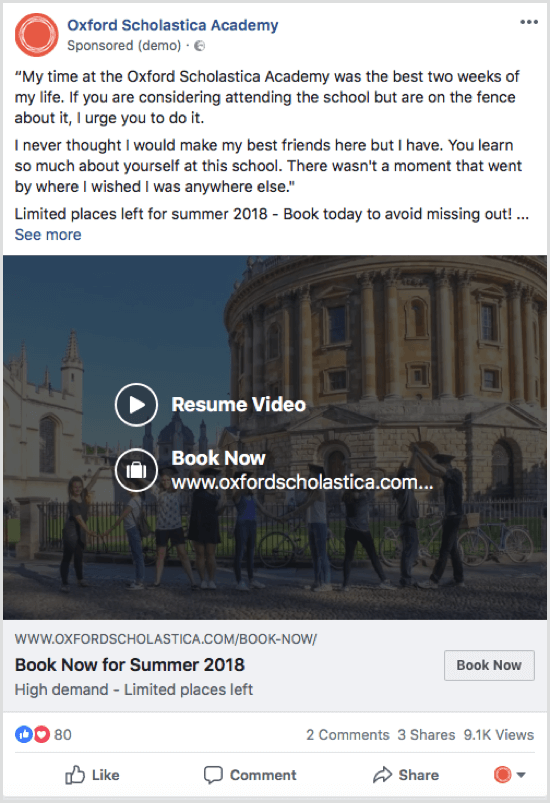 You can break a Facebook carousel ad into three components:
- Copy: Use relevant and attention getting copy to grab your audience’s attention and drive traffic to your website to find out more.
When you use testimonials directly in your copy, you create social proof that builds the confidence and trust your target audiences need to convert. Position a single testimonial at the start of each ad, and follow it with a reminder of an offer for your product or service that’s relevant to the pages of your website they’ve visited. - Creative: The multiple cards in the carousel format allow you to vary the creative in your ad. Use both videos and images to hold your audience’s attention and hook their engagement.
- Headline and CTA: Repeat your Snap headline again in your first two carousel cards to reinforce the offer. Add more cards for each of the core features to provide important information about your product to further drive consideration. Use a call to action (CTA) on each card to reinforce intent.
Step 1. Head over to Facebook Ads Manager
All of Facebook’s ad campaigns run through the Facebook Ads Manager tool. These steps are for using it on a desktop or laptop computer.
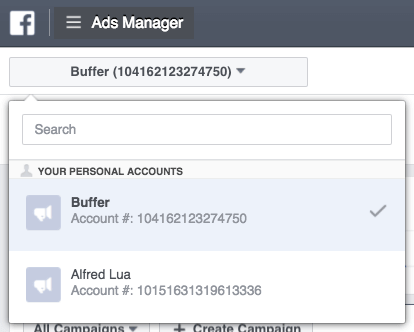
The easiest way to find Facebook Ads Manager is to click and bookmark this direct link. You will be brought directly into the Facebook Ads Manager for your personal ad account. If you manage more than one ad account, use the account drop-down menu to pick the right account.
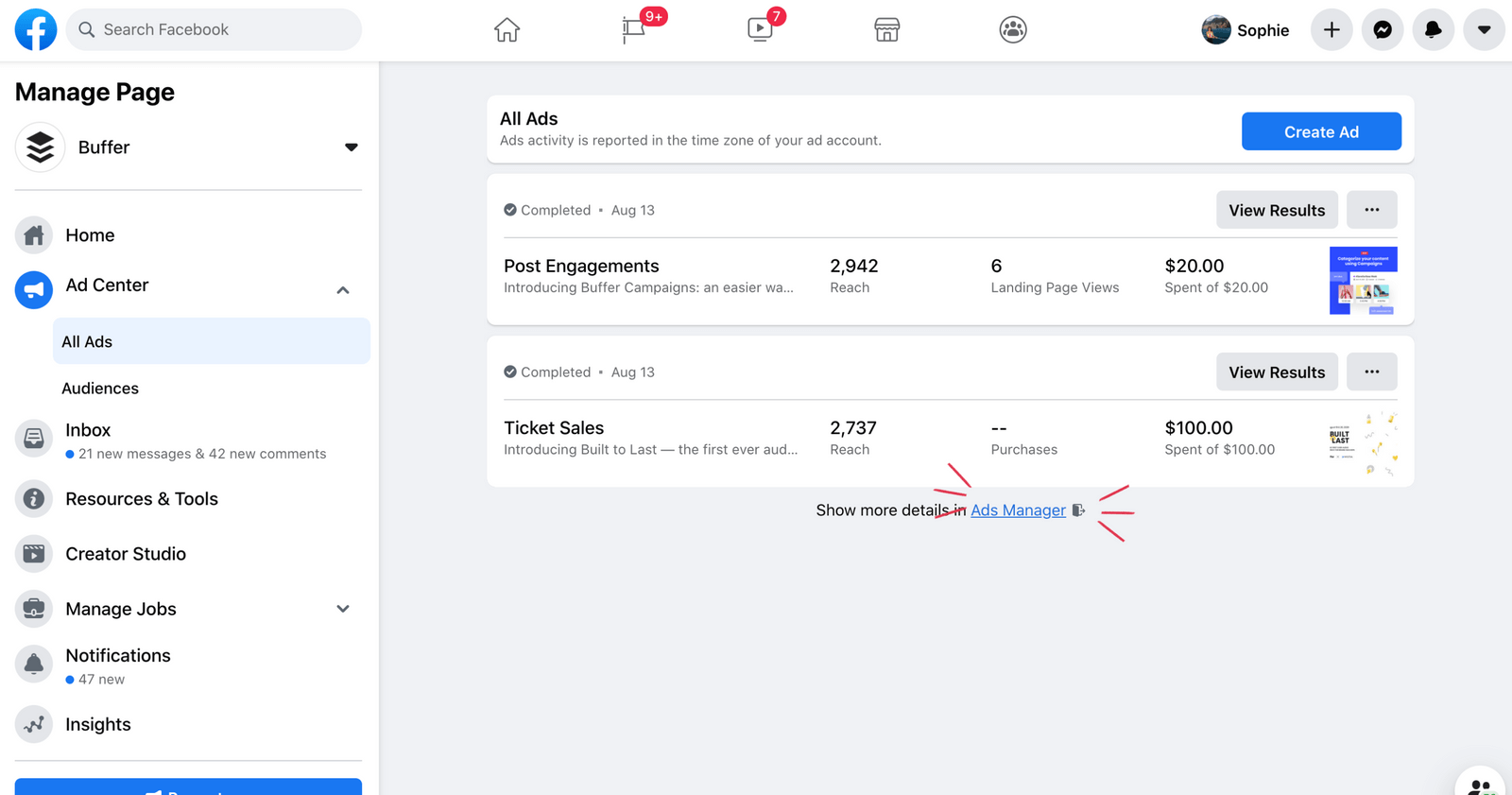
To navigate to Ads Manager right from your business page, head to the left sidebar and click on the “Ad Center” drop-down arrow of any Facebook page, then choose “All Ads” from the drop-down. At the bottom of that page, there is an option to click “Ads Manager.”
You will be brought to your Facebook Ad Accounts page, where there will be a quick overview of your ad account(s). If you have access to more than one ad account, select the account where you wish to run ads.
Step 2. Choose your objective
To get started with your first ad, click the green ‘Create Ad’ button.
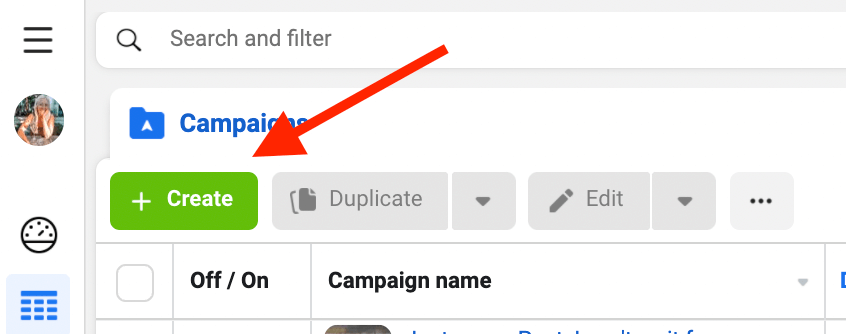
Facebook will take you to a page where you will be prompted to choose a campaign objective.
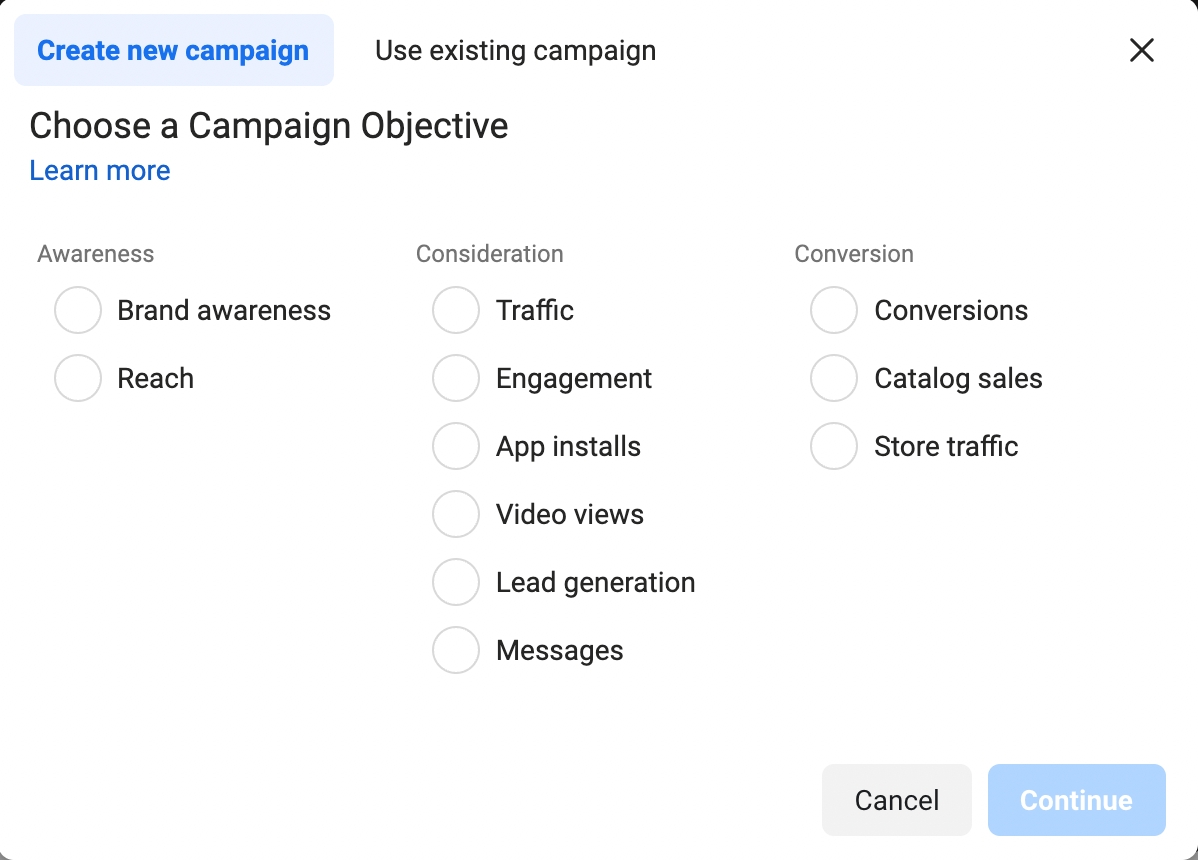
You have many different ways of approaching an ad campaign based on what you wish to achieve. These ways fall within three categories of benefits:
Awareness
This category consists of objectives that generate interest in your product or service. You can choose to:
- Increase brand awareness: Show your ads to people who are most likely to remember them.
- Increase your reach: Show your ads to the maximum number of people.
Top tip: For small budgets, you’re likely to get the most bang for your buck with the awareness ad types. Moz found that $1 per day can grow your audience by 4,000 people. While this didn’t quite match our experience, it’s well worth trying.
Consideration
You might want to choose this category if you want people to start thinking about your organization or looking for more information about it. Actions in this category include:
- Send people to a destination on or off Facebook
- Get more Page likes, event responses, or post reactions, comments, or shares
- Get more video views
- Improve lead generation
Conversion
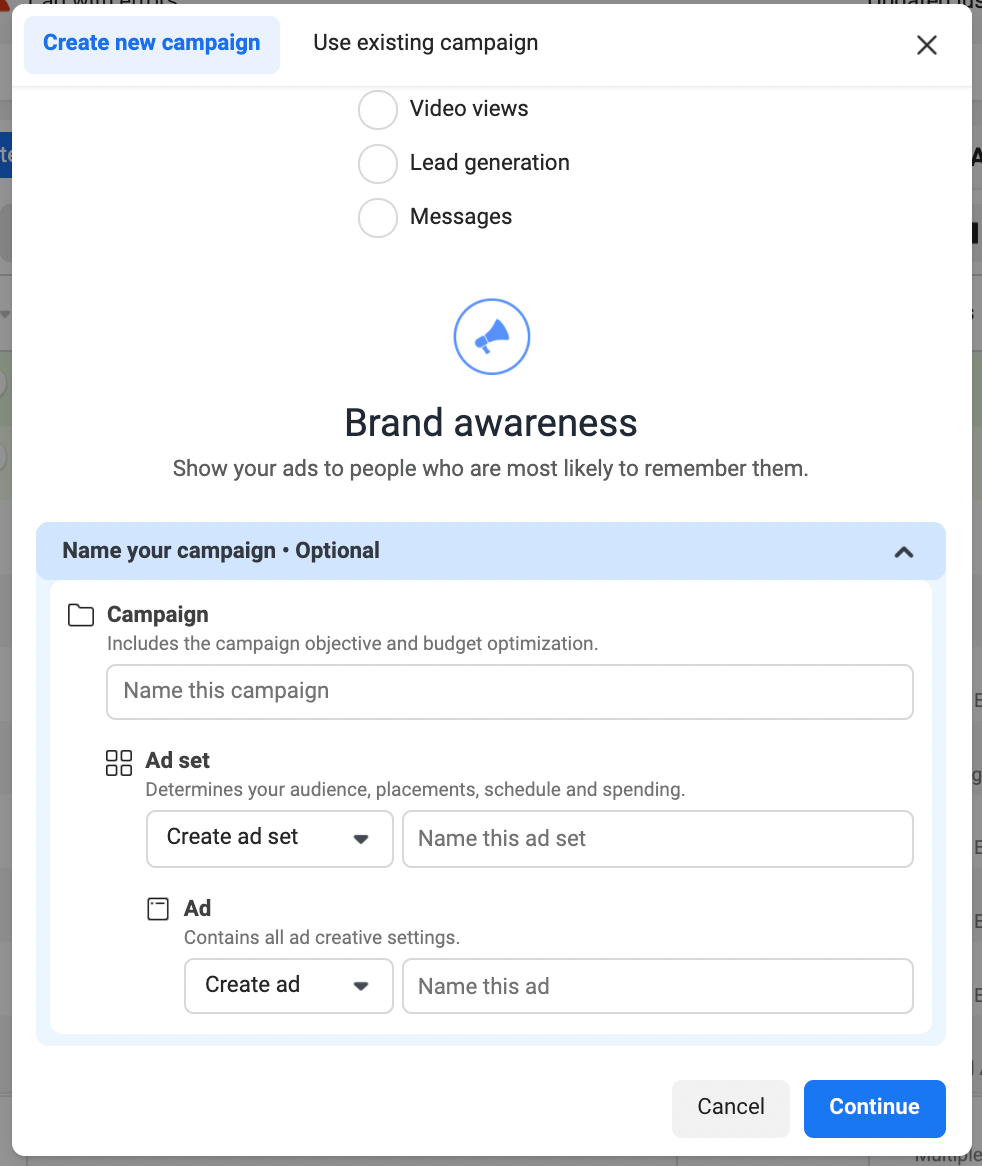
Once you’ve selected your marketing objective, you’ll be asked to name your campaign. Make sure to make your campaign name something recognizable to everyone working on the ads.
Step 3: Set your campaign budget
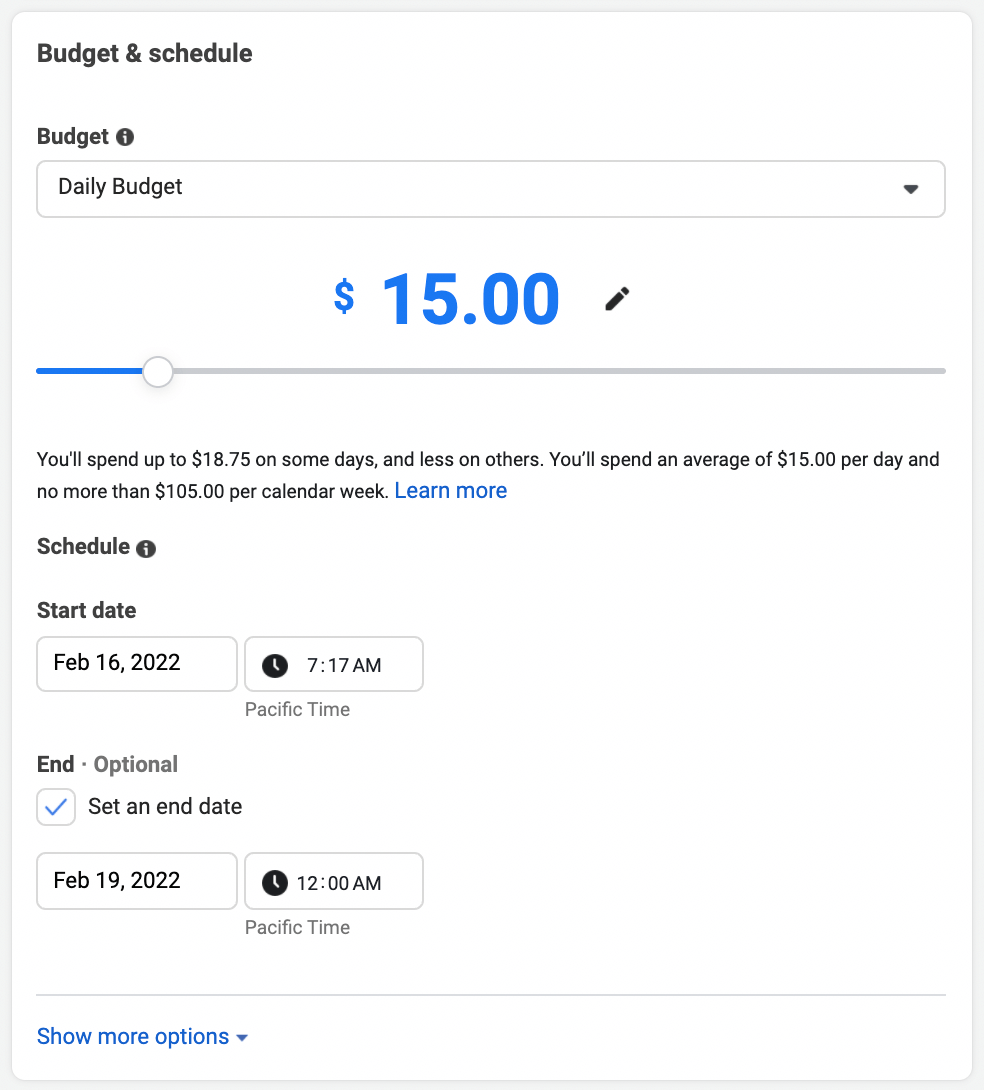
Now it’s time to choose how much you’d like to spend on your ad. When you set a budget, it’s important to remember that this figure represents the maximum amount of money you want to spend. You can set your budget per day or as a total amount for the campaign.
- Daily: A daily budget sets a limit on what you spend each day on your ads. Facebook will use the criteria you set to find the right place and time to show your ad to your target audience. Once your budget is reached, the ads stop running for the day. The cycle starts again on the next day.
- Lifetime: A lifetime budget is the maximum that you’ll spend during the entire time you run your ad campaign. You give Facebook a number and an end date, and it will spend the money based on ad performance. Once your budget is reached, the campaign ends.
Step 4: Customize your target audience
Because it determines who Facebook will show your ad to, a strategically defined audience is crucial for the success of your Facebook Ads campaigns.
As mentioned earlier, the audience for your ad can be customized based on all the following demographics:
- Location
- Age
- Gender
- Languages
- Interests
- Behaviors
In addition, with the Connections setting, you can choose advanced targeting, which lets you include or exclude people who are connected to certain pages, apps, or events. You can also further customize your targeting using custom audiences for retargeting people who have already interacted with your business.
For example, let’s choose an audience for a Buffer ad. Facebook recommends narrowing your reach in a targeted way in order to maximize the impact of your ad.
We are going quite narrow for this example, choosing the following audience demographics:
- Location: United States
- Interests: Social media
- Excluded: ?
- Age: 18–40
- Language: English (US)
This will give you an estimated reach, this indicates how many you could expect to be online any given day and potentially see the ad.
Step 5: Choose your ad placements
Ad placement defines where your ad appears for your target audience. Based on your objective, you may choose to show your ad on Facebook, Instagram, Messenger, or the Audience Network.
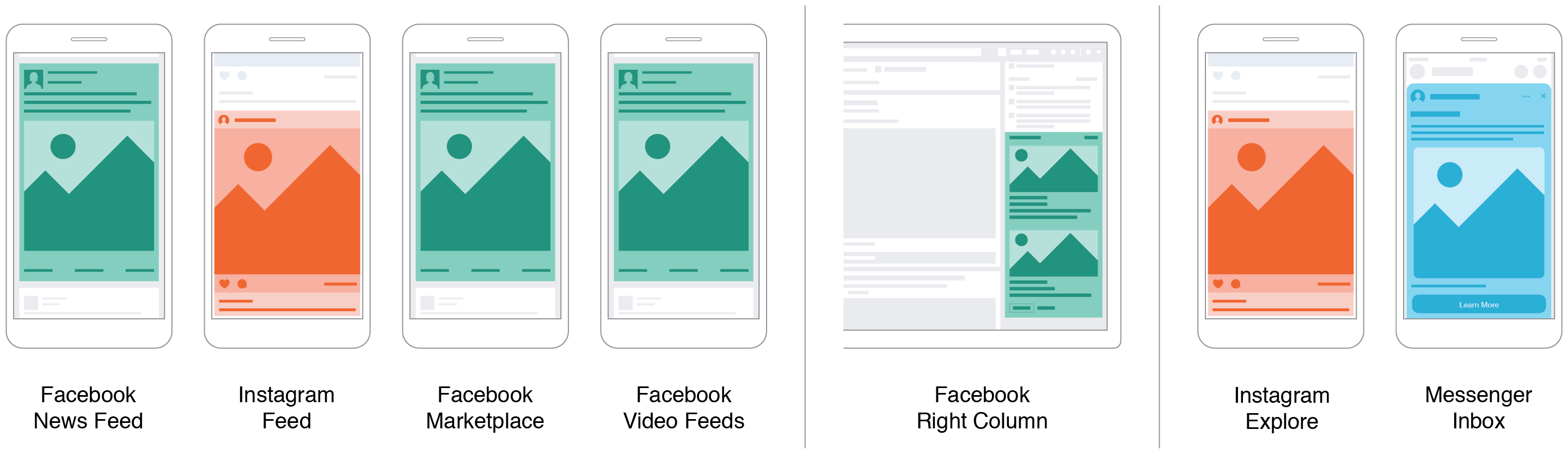
Facebook recommends using automatic placements for the objective you chose, which enables Facebook to optimize placements for you in order to get the best possible results at the lowest overall average cost.
However, if you want to select your own placements, Facebook has several options:
- Feeds: Get high visibility for your business with ads in feeds
- Stories and Reels: Tell a rich, visual story with immersive, full-screen vertical ads
- Search: Get visibility for your business as people search on Facebook
Step 6: Create your advertisement
Creating a new ad
If you’d like to create your ad from a blank canvas, the first task is to select a format. You’ve probably seen many of the Facebook Ads formats on your personal feed, but your choices will vary based on the objective you set for your ad during Step 3.
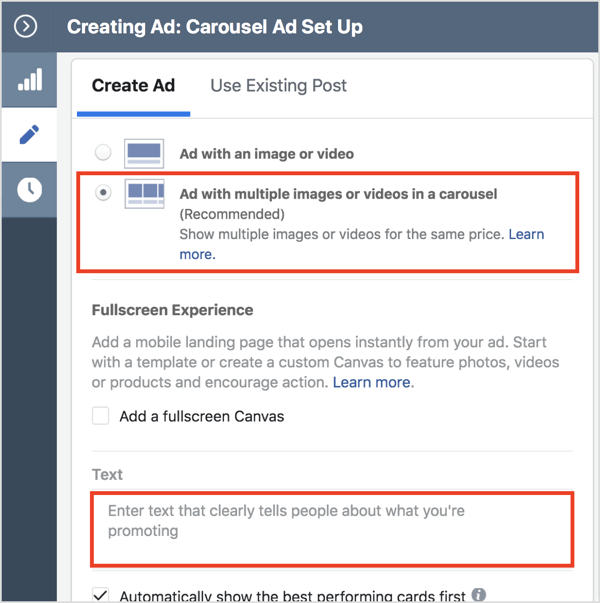
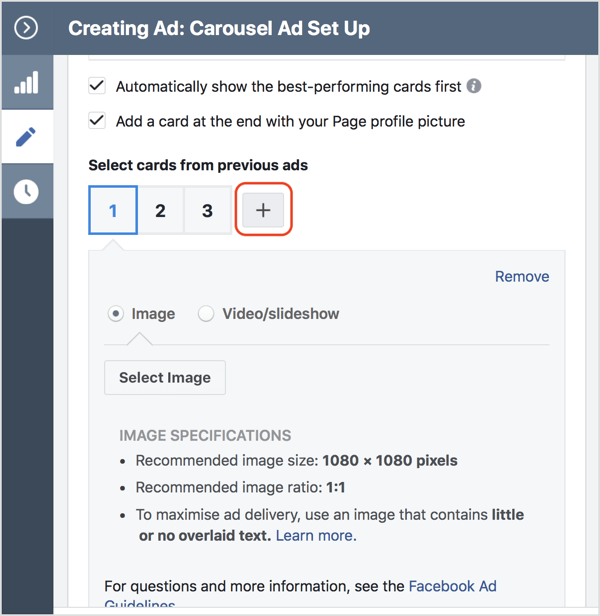
Finally, select the CTA and ensure that the Pixel Tracking toggle is enabled.
YOU MAY WANT TO SETUP A FORM ON FACEBOOK TO COLLECT INFORMATION, IF SO, THIS SITE HAS INSTRUCTIONS ON THAT:
https://www.facebook.com/business/help/397336587121938?id=735435806665862&ref=fbb_leadads
OR WE CAN SETUP A FORM FOR YOU TO LINK TO. I WOULD NOT USE MS FORMS FOR THIS AS IT IS LACKING BRANDING.
Facebook’s specs for photo ads
- File Type: JPG or PNG
- Ratio: 1.91:1 to 1:1
- Resolution: At least 1080 x 1080 pixels
- Maximum File Size: 30MB
- Minimum Width: 600 pixels
- Minimum Height: 600 pixels
- Primary Text: 125 characters
- Headline: 40 characters
- Description: 30 characters
- Video Ads: Use a single video to promote your product or service. Videos tend to stand out more on a news feed because of their movement.
Facebook’s specs for video ads
- File Type: MP4, MOV, or GIF
- Ratio: 1:1 (for desktop or mobile) or 4:5 (for mobile only)
- Resolution: At least 1080 x 1080 pixels
- Video Duration: 1 second to 241 minutes
- Maximum File Size: 4GB
- Minimum Width: 120 pixels
- Minimum Height: 120 pixels
- Primary Text: 125 characters
- Headline: 40 characters
- Description: 30 characters
- Carousel Ads: Showcasing up to 10 images or videos in one single ad, these are good to promote multiple products or services, each with its own link.
Facebook’s specs for carousel ads
- Image File Type: JPG or PNG
- Video File Type: MP4, MOV, or GIF
- Ratio: 1:1
- Resolution: At least 1080 x 1080 pixels
- Number of Carousel Cards: 2 to 10
- Image Maximum File Size: 30MB
- Video Maximum File Size: 4GB
- Video Duration: 1 second to 240 minutes
- Primary Text: 125 characters
- Headline: 40 characters
- Description: 20 characters
- Landing Page URL: Required
- Slideshow Ads: This ad format takes several images and makes them into a quick slideshow. They can be a great alternative for people who don’t have the time or expertise to make videos.
Facebook’s specs for collection ads
- Image Type: JPG or PNG
- Video File Type: MP4, MOV, or GIF
- Ratio: 1:1
- Resolution: At least 1080 x 1080 pixels
- Image Maximum File Size: 30MB
- Video Maximum File Size: 4GB
- Primary Text: 125 characters
- Headline: 40 characters
- Landing Page URL: Required
Step 7: Place your order
To submit your ad, click the ‘Publish’ button at the bottom right-hand corner of the page.
Once your ad is submitted, Facebook will hold your post so they can review it to make sure it fits their specs and doesn’t violate their community guidelines. Expect for it to be reviewed within 24 hours. You’ll receive a confirmation email from Facebook once the ad is live.

