
Did you know that you can post to your school website or LucieLink from your phone, as easily as posting to Facebook and Twitter from your phone? It’s not only easy, but if you post to your website first, that post can be pushed out automatically to Facebook and Instagram automatically! Post once, and it goes everywhere!
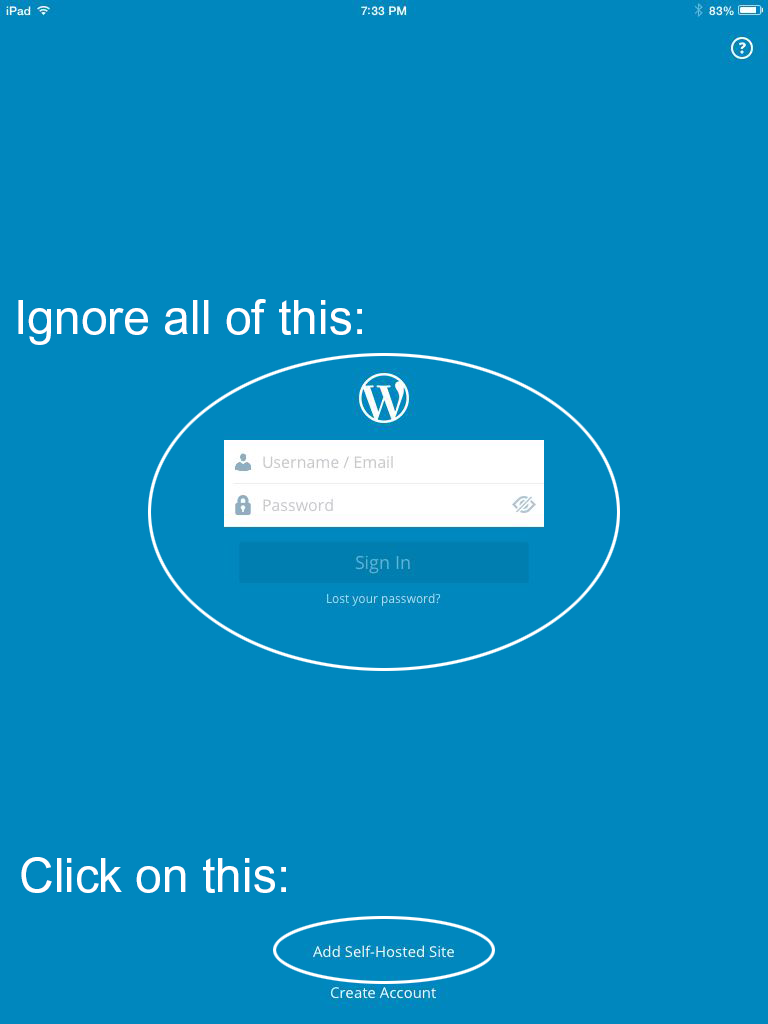
Once it’s installed on your phone, keep in mind that the default site that it will try to setup is for a wordpress.com account. Since we have our own WordPress sites hosted here at the district, you will need to click “Add Self-Hosted Site” instead of signing in to WordPress.com. It’s the TINY little link at the bottom:
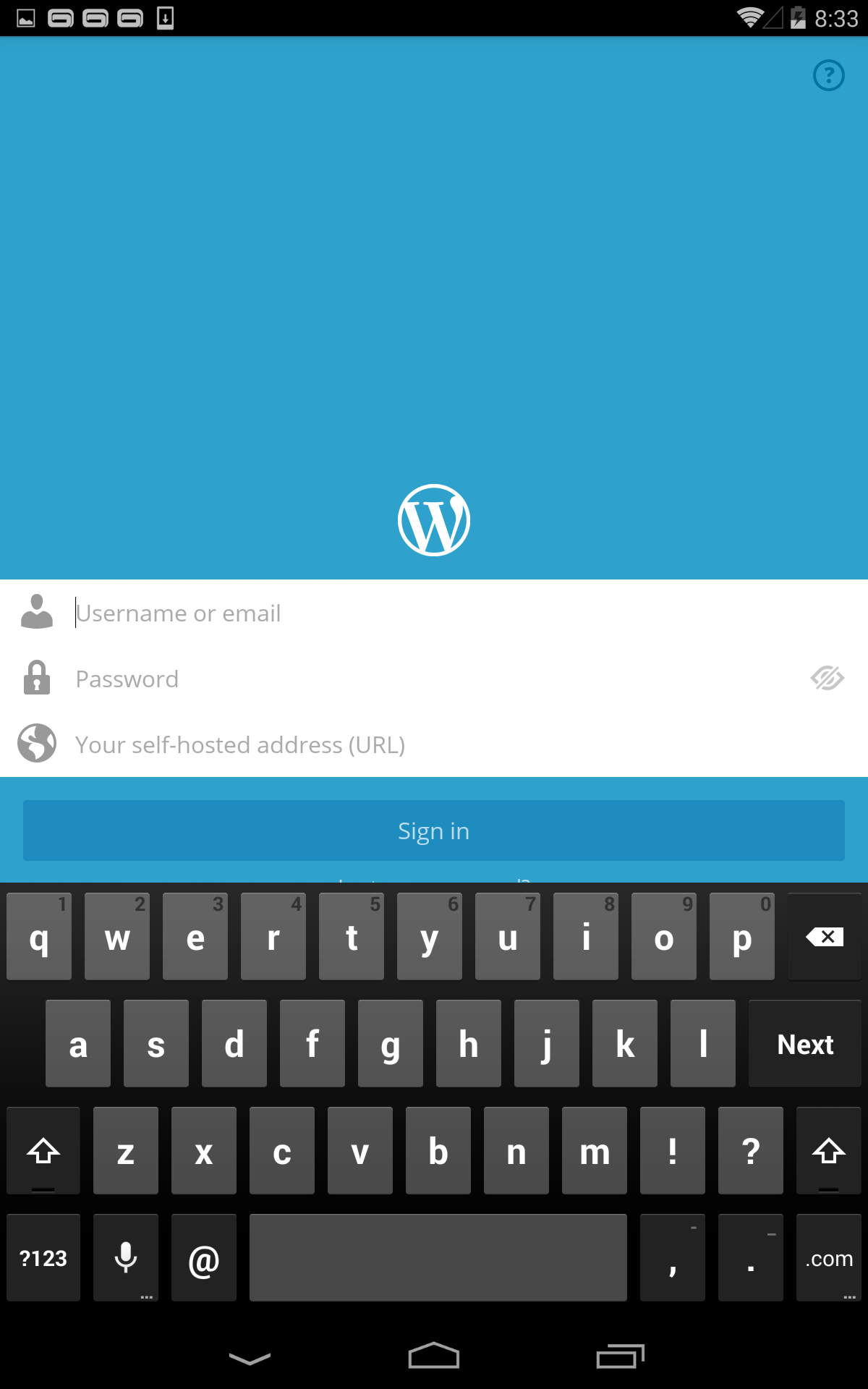
On the next screen, you’ll enter your username, password, and the link to the website that you wish to login to (either the school website link or LucieLink). It’s a lot of typing, but you will only need to do it once, and the app will save your settings:
You can use the app to create posts, edit posts, even edit or create pages. Instructions for using these features are below: